Guide · How-to
How to make a scanned PDF accessible (OCR, tags and testing)
A scanned page looks like text but is a picture. Here is how to turn it into a document screen-reader users can read, and when to choose another route.
The short answer
An image-only scan has no real text, so screen readers announce nothing useful, and search and copy do not work. It fails WCAG success criteria such as 1.1.1 Non-text Content and 1.3.1 Info and Relationships. Making it accessible takes three things: recognized and corrected text, tags with a logical reading order, and a test.
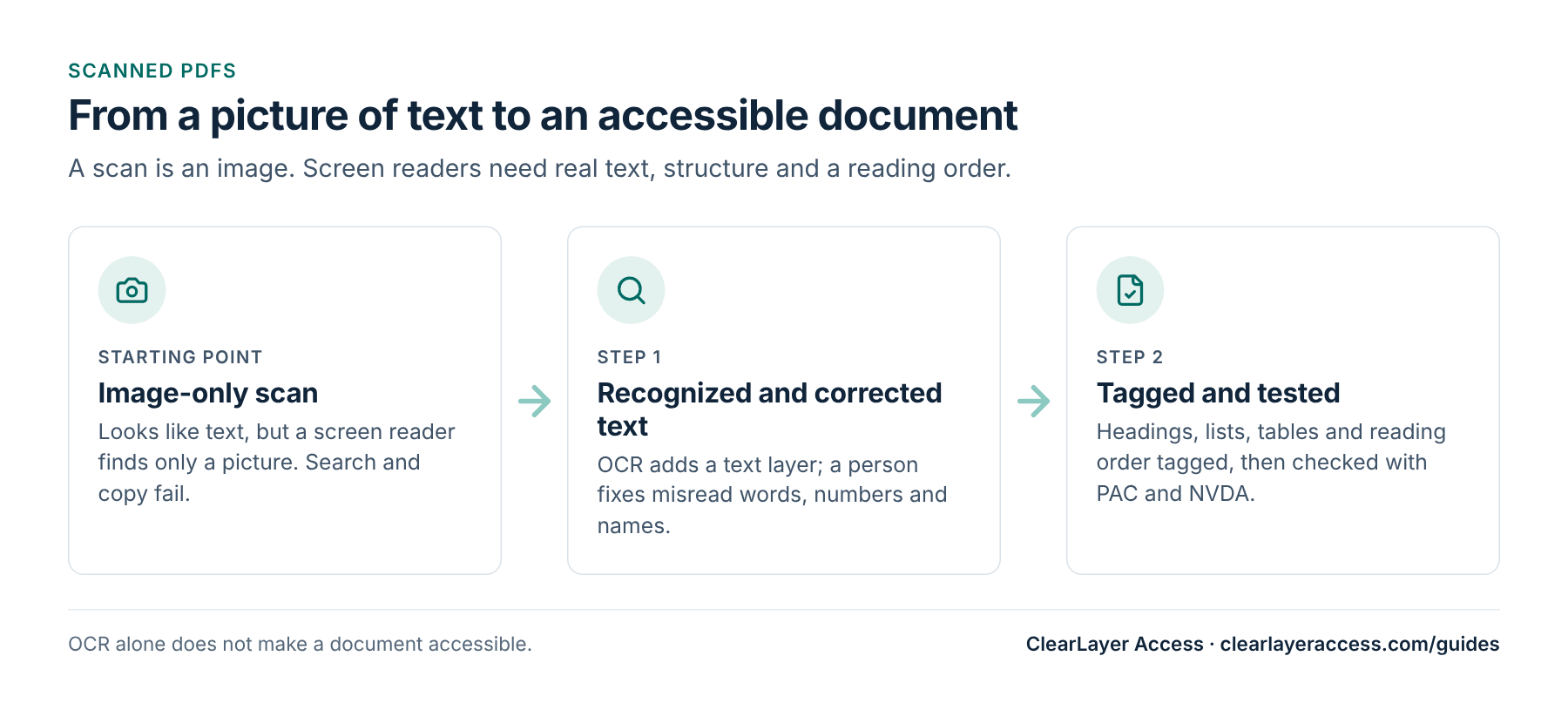
How to tell if a PDF is scanned
- Try to select a word with the cursor. If you select a whole box instead, the page is an image.
- Search for a word you can see. If nothing is found, there is no text layer.
- Open the file in a free checker such as PAC. It reports untagged content and missing text.
The four remediation steps
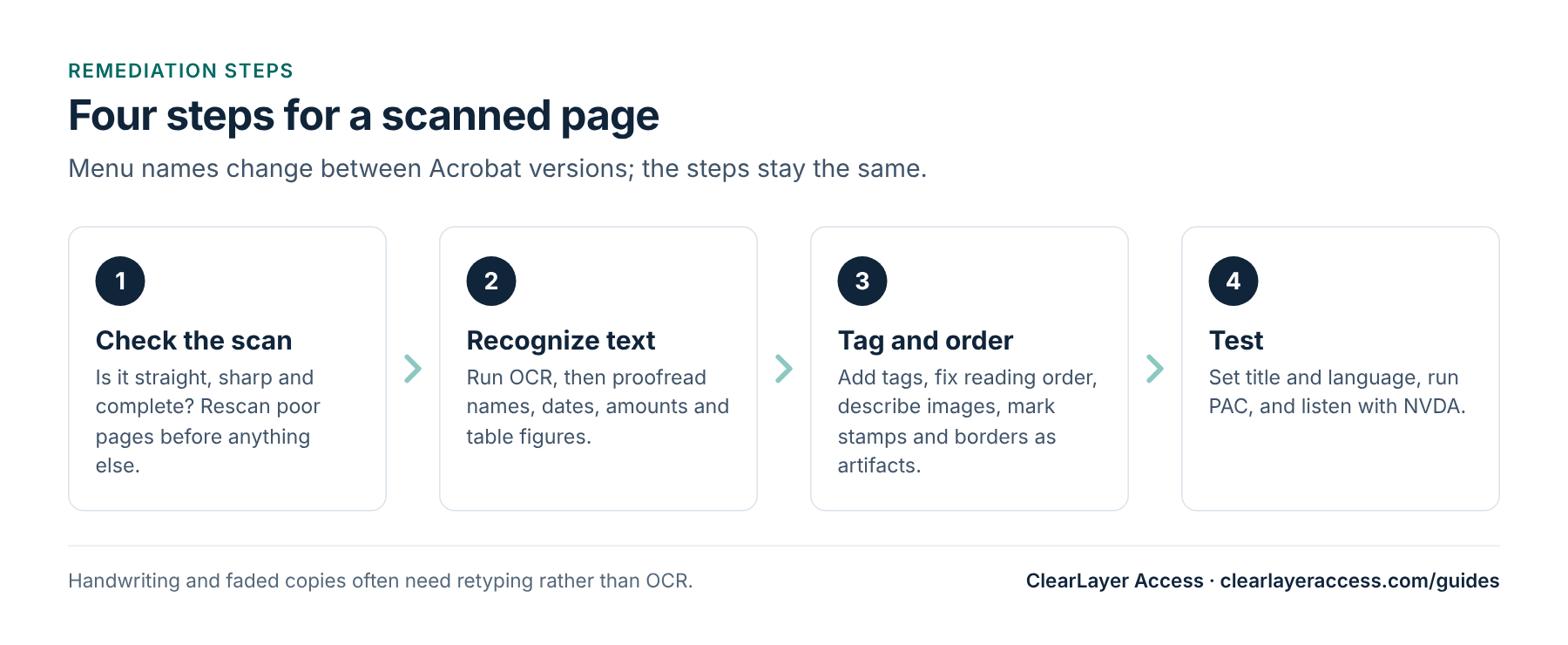
- Check the scan. Crooked, blurry or cropped pages produce bad OCR. Rescan them at a good resolution first.
- Recognize text. In Adobe Acrobat Pro, the Scan and OCR tools add a text layer. Then proofread: OCR often misreads names, dates, amounts and table figures, and a wrong number in a budget is worse than none.
- Tag and order. Add tags, check the reading order, mark headings, lists and table headers, write alt text for meaningful images such as maps, and mark signatures, stamps and page borders as artifacts or describe them where they carry meaning.
- Test. Set the document title and language, run PAC, and listen to the first page and a table with the free NVDA screen reader.
Section508.gov’s Create Accessible PDFs resources include training on testing and remediation in Acrobat.
Remediate, recreate or publish as a web page
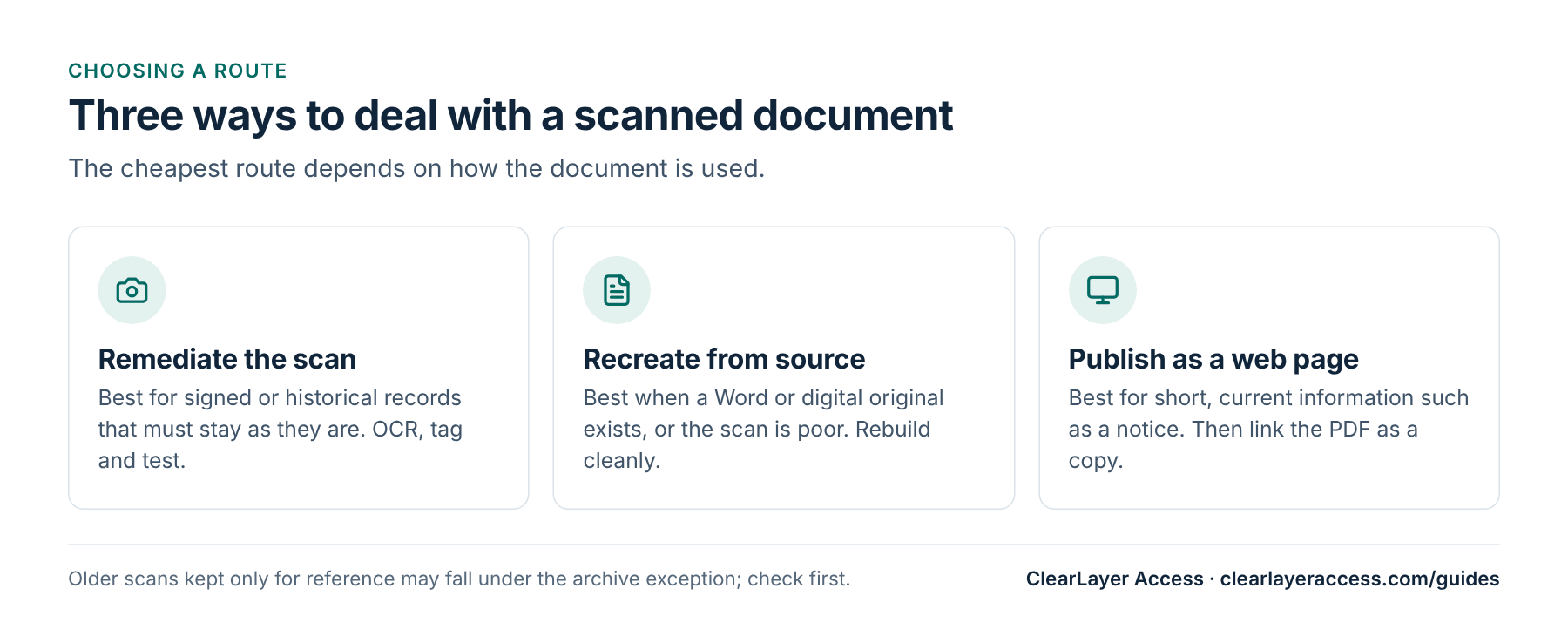
Handwritten forms, faded photocopies and pages with heavy stamps are hard for OCR. For those, retyping the content into a clean document is often faster and more accurate than correcting OCR errors line by line.
Planning a scanned backlog
Scanned pages usually take longer than born-digital pages because of the proofreading. Before you budget, sort the scans into groups:
- In current use, such as forms and notices residents still rely on: fix or recreate these first.
- Kept only for reference, such as old minutes: these may fall under the archive exception if every condition is met.
- Outdated: retire them from public pages in line with your records retention schedule.
For pricing, scans are quoted after we see a sample, because quality varies so much; see our PDF remediation cost guide for how per-page pricing works.
Prepared by ClearLayer Access. Published October 31, 2026; rules and references checked against official sources on October 31, 2026. This guide is general information, not legal advice, and following it does not guarantee compliance or any legal outcome.
Frequently asked questions
No. OCR adds a text layer, but the document still needs corrected text, tags, a logical reading order, alt text where needed, a title and a language, and a test.
It can be a starting point, but automatic tags on scans often get the reading order, headings and tables wrong. Review and correct them, then test with a screen reader.
If a signature or stamp only decorates, mark it as an artifact. If it carries meaning, such as showing a document was signed or approved, describe that in alt text or nearby text.
Keep and remediate the scan when the original appearance matters, such as signed records. Retype or recreate when the scan is poor or the content is still being updated.
Have a box of scans to clear?
Send up to 10 scanned pages for a free test. We will recognize, correct, tag and test them, and tell you which route fits the rest.
Up to 10 PDF pages for eligible organizations.