Guide · Checklist
Accessible meeting agendas and minutes: a checklist for clerks
Agendas and minutes are posted every week, so small fixes to how they are made pay off fast. Use this checklist before every posting.
Why agendas and minutes come first
For most cities, counties and boards, agendas, packets and minutes are the largest stream of new documents. They are also how residents follow and take part in public meetings. Under the ADA Title II web rule, documents that people use to participate need to meet WCAG 2.1 AA, so these files should be first in line.
The good news: they repeat. Fix the template once and every future agenda benefits.
Headings and lists
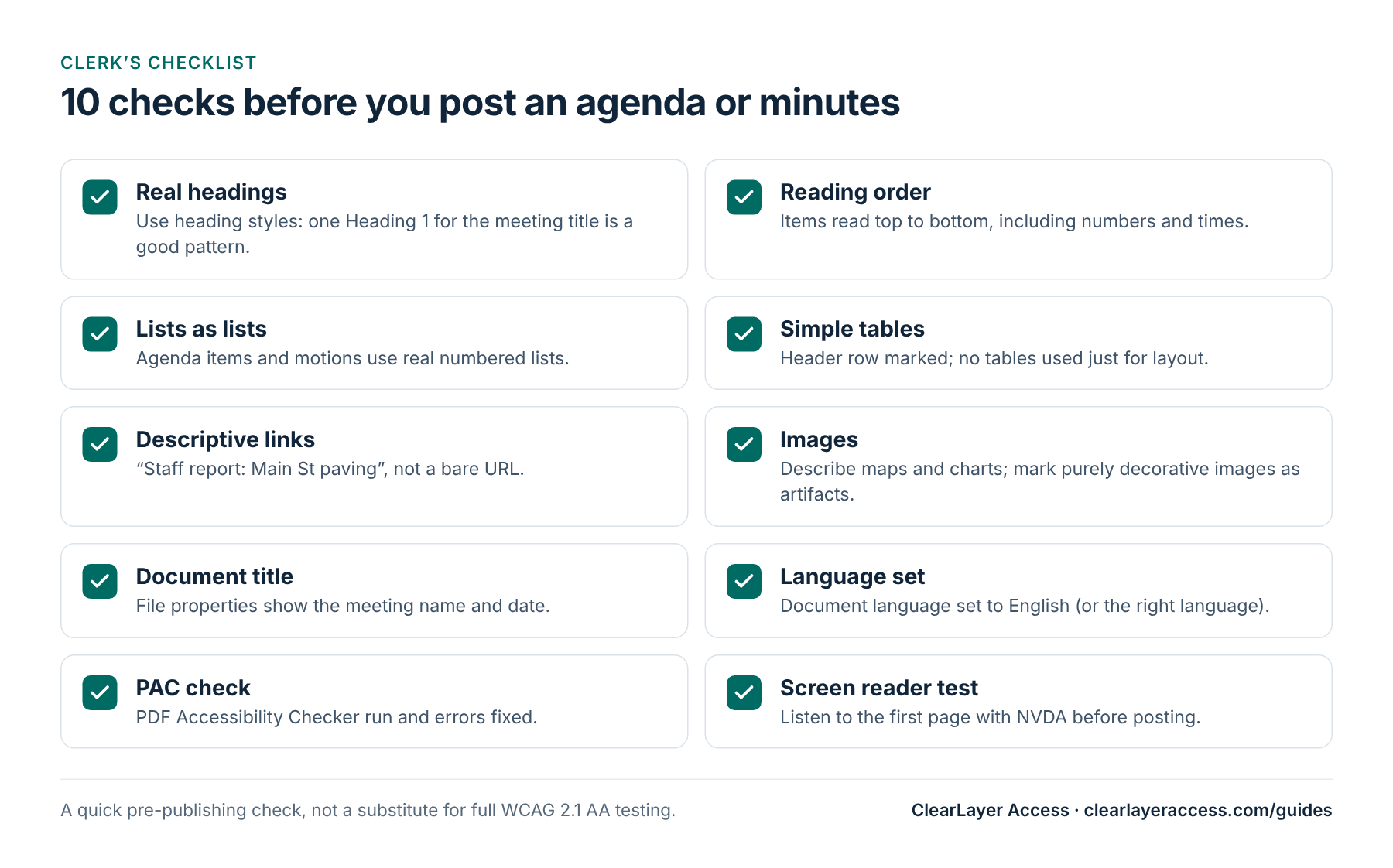
Screen-reader users jump through a document by its headings, the way sighted readers scan bold text. Use real heading styles, not bold or larger text:
- Heading 1 for the meeting name and date. One Heading 1 per document is a recommended pattern for agendas, not a WCAG rule.
- Heading 2 for main sections such as Call to Order, Consent Agenda and Public Hearings.
- Heading 3 for individual items within a section.
- Numbered lists for agenda items and motions, created with the list button, not typed numbers.
Reading order
A PDF can look perfect and still be read in the wrong order. Page headers, footers, text boxes and two-column layouts are common causes: a screen reader may announce the footer before the meeting title, or read a time out of context.
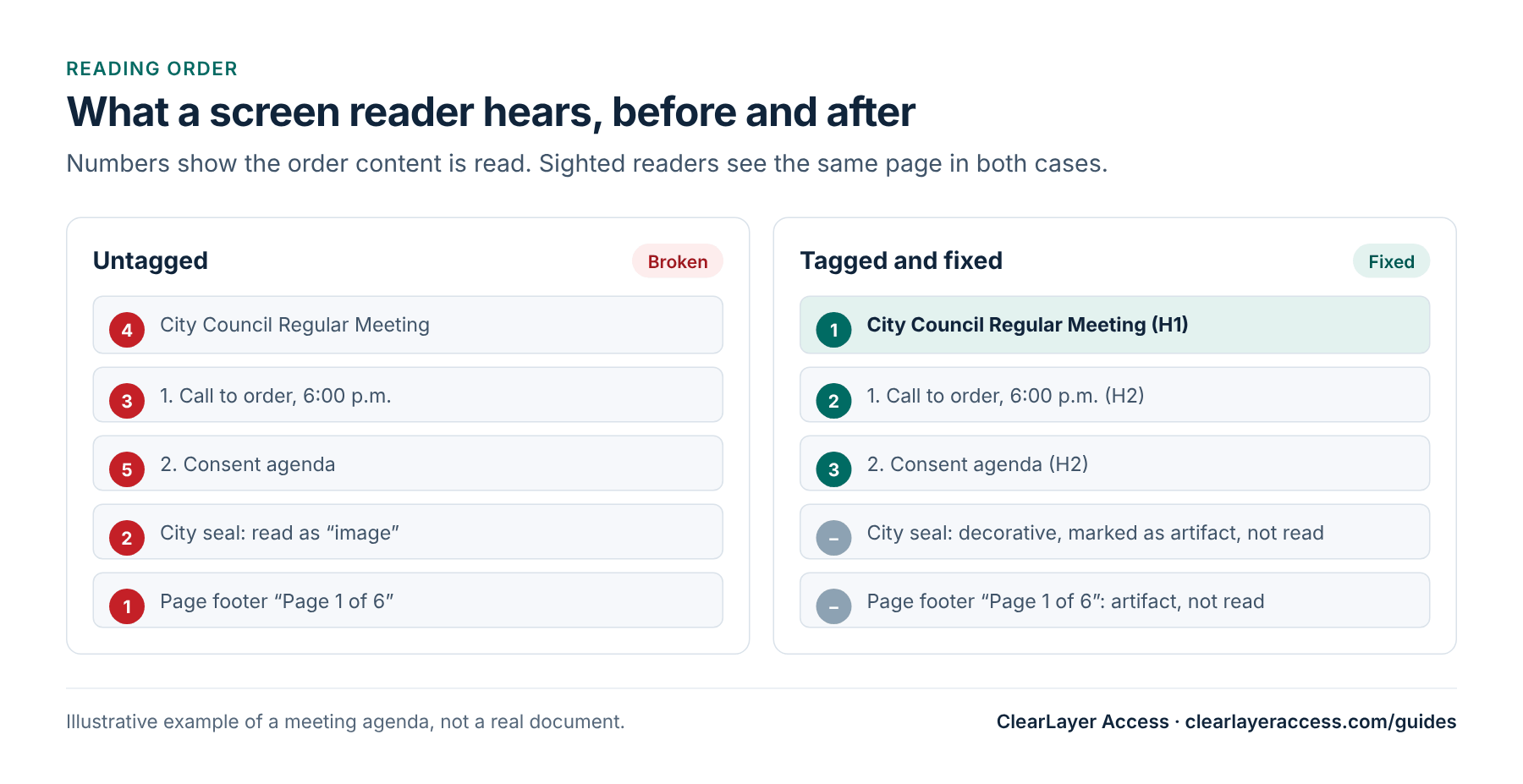
Avoid text boxes and floating shapes in your template. Keep the agenda in one column, and put repeated text such as page numbers in Word’s real header and footer so it is marked as an artifact.
Tables, links and images
- Tables: use them only for data, such as vote tallies or schedules. Mark the first row as a header row that repeats on each page. Do not use tables to lay out the page.
- Links: write link text that makes sense on its own, such as “Staff report: Main Street paving”, instead of a bare web address or “click here”.
- Images: an image that only decorates, or repeats information already in the text (such as a city seal beside the city name), can be marked as decorative so screen readers skip it. An image that carries information, such as a map or chart, needs alt text or a nearby description of what it shows.
Document title and language
Set the document title in File → Info → Properties, for example “City Council Regular Meeting Agenda, November 4, 2026”, and make sure the PDF shows the title rather than the file name. Set the document language to English, or to the language the document is written in. Both are quick fixes that automated checkers flag often.
Minutes, motions and votes
Minutes have their own patterns. Keep them consistent from meeting to meeting so they are easy to follow with a screen reader:
- Use a heading for each agenda item, matching the agenda, so people can jump between the two documents.
- Write motions in full sentences, with who moved and seconded, rather than relying on bold or indentation to show the structure.
- Record roll-call votes as a simple list or a small table with a header row, for example Member and Vote.
- Spell out abbreviations the first time, such as “Planning and Zoning Commission (P&Z)”.
Long packets and posting online
A full agenda packet can run to hundreds of pages. Add bookmarks for each agenda item, which Word creates from headings at export. If you combine files into one packet in Acrobat, check that each attachment keeps its tags and that the bookmarks still point to the right pages.
How you post the file matters too. On your website, use link text such as “Agenda, November 4, 2026 (PDF, 12 pages)” rather than the file name, and give files readable names. Where your agenda software can publish an HTML version of the agenda, post it alongside the PDF. Always include a line telling people how to request the documents in another format.
Fix it once in Word
Most problems start in the source file. When the Word template uses real heading, list and table styles, Word usually exports them as matching PDF tags. Always check the tags in the exported PDF, because results vary by version and by how the styles were built:
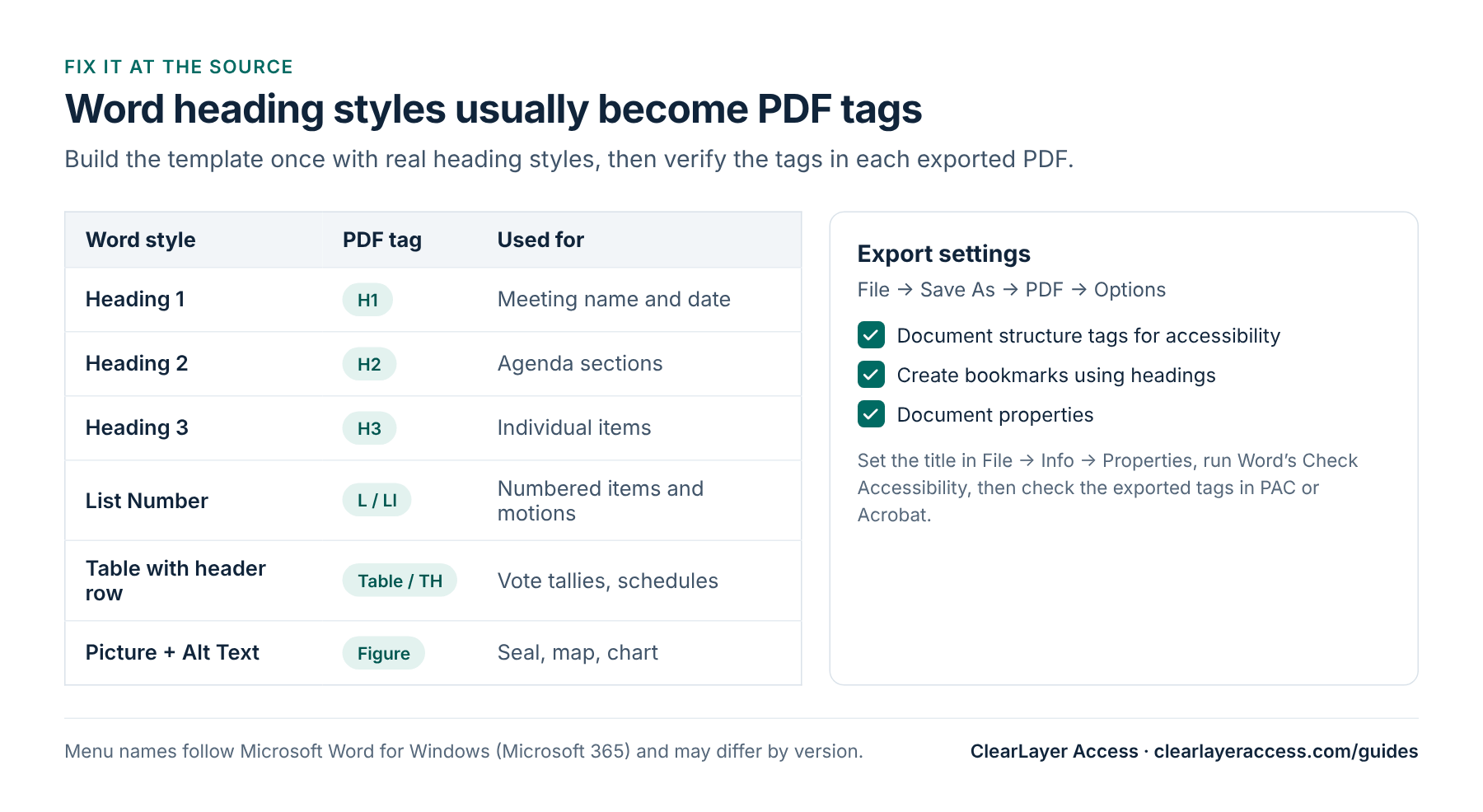
- Build or update the agenda and minutes templates with the styles above.
- Run Word’s Check Accessibility and fix what it reports.
- Export with File → Save As → PDF, and under Options keep Document structure tags for accessibility turned on (see Microsoft’s Create accessible PDFs). Avoid “print to PDF”, which throws the tags away.
Attachments from other departments, and scanned signed documents, are the weak point of most packets. Ask for the original Word or Excel files, and treat scans as a separate job: they need text recognition before they can be tagged.
Make it part of the routine
Accessibility lasts when it is part of the normal publishing routine rather than a one-off project:
- Name one person who owns the agenda and minutes templates, and lock the styles so they are not changed by accident.
- Keep this checklist next to the publishing steps, and use it for every posting, including special and emergency meetings.
- Give departments that send attachments a one-page guide to headings, alt text and tagged export.
- Once a quarter, spot-check a few recent postings with a screen reader to catch habits that slip.
Test with PAC and a screen reader
Two free Windows tools cover a quick check:
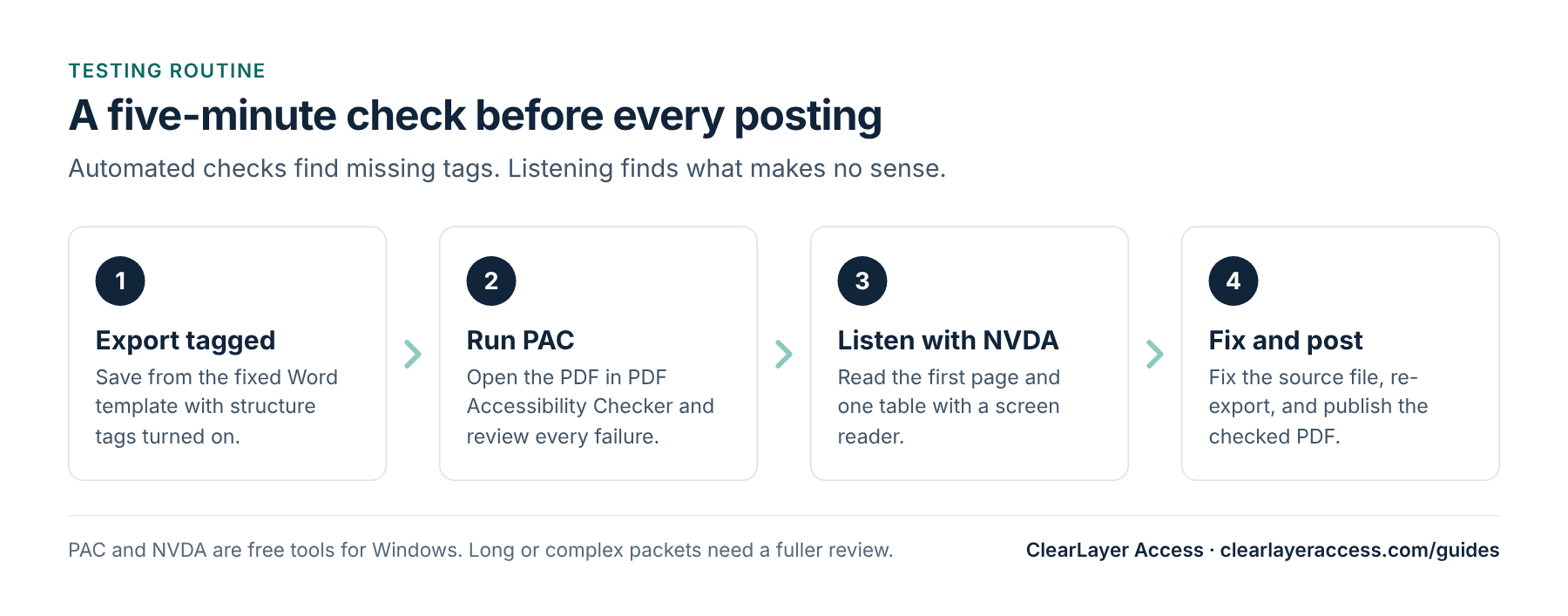
- PAC (PDF Accessibility Checker) checks the file against PDF/UA and many WCAG requirements and lists failures.
- NVDA is a free screen reader for Windows. Listen to the first page and one table: is the title announced first, are items in order, do table cells make sense?
For deeper guidance, Section508.gov’s Create Accessible PDFs resources cover testing and remediation in Acrobat, and the WCAG 2.1 standard itself lists every success criterion.
Passing PAC does not prove a document is accessible: it cannot judge whether alt text is useful or the reading order is logical. For long packets, budgets and forms, a fuller manual review is worth it. If the backlog is too large for your team, our ADA Title II document service handles agendas and minutes, and you can try it with a free 10-page test.
Prepared by ClearLayer Access. Published October 31, 2026; dates, rules and references checked against official sources on October 31, 2026. This guide is general information, not legal advice, and following it does not guarantee compliance or any legal outcome.
Frequently asked questions
If the attachments are posted for residents to read as part of the meeting, they are part of the content people use to participate, so plan to make them accessible too. Ask departments for original source files to make this easier.
Word documents count as web content too, so they also need to be accessible. A well-structured Word file is a good source, but many offices still post a PDF for consistency.
PAC (PDF Accessibility Checker) for an automated check of the PDF, and NVDA, a free screen reader, to listen to the document. Word’s built-in Check Accessibility helps before export.
Not necessarily. PAC cannot judge whether alt text is meaningful or whether the reading order makes sense. A quick listen with a screen reader catches many problems PAC misses.
Hand off the backlog, keep the routine.
Send your next agenda packet for a free 10-page test and see the tagged result with test notes.
Free test open to cities, counties, school districts and special districts.